Showing posts with label Workflow provider. Show all posts

Tuesday, 9 October 2018

Add hierarchy token in WorkflowLimitHierarchyProvider for custom workflow in AX 2012

Hierarchy assignment provider is used to determine a user Id based on a search in a hierarchy. As we all know that hierarchy provider gives limited options for the starting point of the workflow hierarchy and those options are :

  • Workflow originator : It is the user who is submitting the workflow. 
  • Workflow owner : It is the user who is configuring the workflow.
  • WorkerRecId
  • Personnel Number
Let's say we have scenario in which a person is making a request on behalf of any employee and we need to send  that request to level 1 manager or  immediate supervisor of employee for approval. In this case we won't be able to find out any starting through standard hierarchy start points. For achieving our goal we have potentially two methods :
  1. We can make changes in standard WorkflowLimitHierarchyProvider class. Since it is available for all workflow types and its association type is set on global level.
  2. Create a new hierarchy assignment provider and hierarchy provider class. This class will implement workflowHierarchyProvider interface and we will attach it will our custom hierarchy assignment  provider. 
Note : Right now I am following  first approach but it is not recommended because we might face issue in future upgrade.

Following  are the steps required to make those changes.

Step 1) Go to AOT ->Workflow node -> Providers -> Hierarchy Assignment -> WorkflowLimitHierarchyProvider. Right click on it and check its properties. Here you will find out the provider class  in which you need to do customization for your custom workflow.


Step 2) Create a new custom EDT which will extend HcmWorkerRecId.
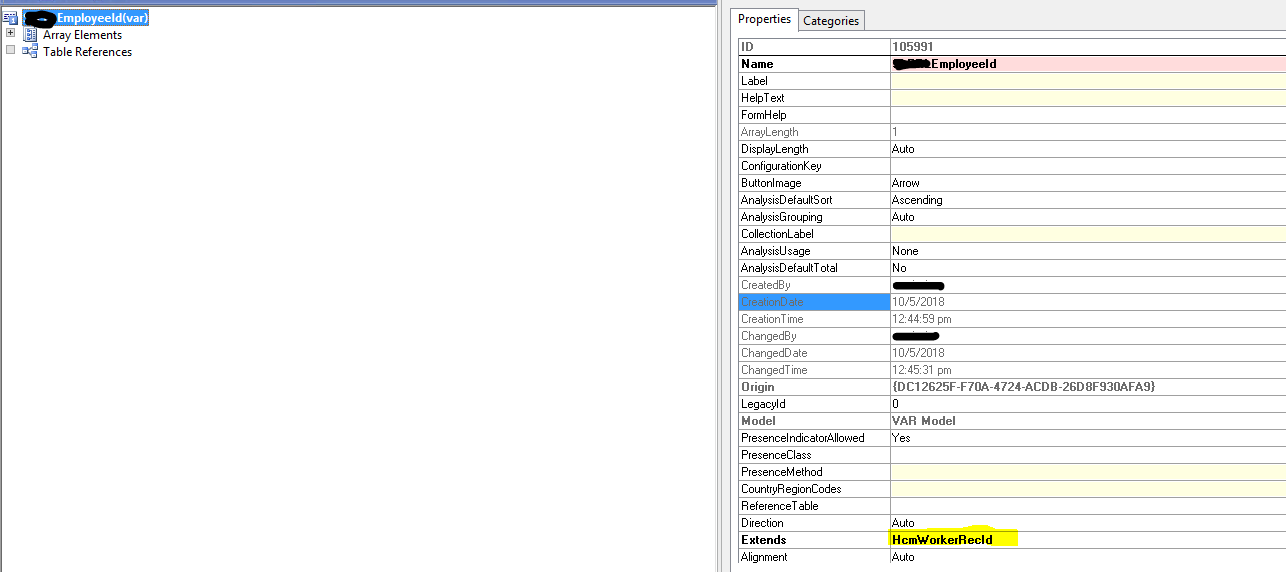


Step 3) Assign this newly created EDT to your employee id field on custom table.

Step 4) Go to AOT -> Classes -> WorkflowLimitHierarchyProvider 

Here you need to make changes in following methods.
  • GetSupportedDataType : In this method we will add code our newly created EDT.
  • convertToNodeDataType : Here on basis of newly created EDT we will be able to get our worker/ employee recid  who request is to be submitted to its manager. After getting the worker recid we will find out its personnel number.
Note: I am not using standard EDT of HcmWorkerRecId directly because it will be used by many tables.


Step 5) Go to your workflow configuration-> Approval -> Step -> Assignment -> Hierarchy Selection. Now verify your custom start point  and drop down will be showing  worker token. I have added expression of employee level 1. So the workflow will be submitted to employee immediate manager or super visor for approval.


You may verify your employee immediate super visor by following this navigation : Human Resources -> Worker position assignment -> Click on position -> New form will opened of position -> View in hierarchy . Here IT Head immediate supervisor is Mohsin Akram.


Also check hierarchy relationship and record should add for the assignment of  reports to position (Mohsin Akram).


Saturday, 6 October 2018

Create custom workflow participant assignment provider type in AX 2012

In Dynamics AX, workflow provider is used to provider specific information to workflow instance on runtime. Let's say we have a scenario in which an employee want to make a request  for anything as per requirements and its requires approval from its department manager/head. In this case workflow provider type participant assignment will be created.

Participant assignment provider type : It is used for resolving a logical role into one or more users ids. For example. this provider is used to resolve a Microsoft Dynamics AX security role into the users assigned to that role.

Following steps are required for creating custom workflow participant assignment provider type.

Step 1) Create a new class and it will implement workflow participant provider interface.


Step 2) Add a new method and enter following code for the getParticipantTokens method of interface. It will be used for defining user groups. In my case its department Manager. Tokens add method accepts first parameter of participant workflow token id and second participant workflow  token name.

Step 3) Add another method and enter following code for the resolve method. This method will be used for adding users to user list . For demo purpose i have added Admin user to user list and it will be returned on runtime and will be send to this user for approval purpose. You may add users as per your requirements.
Step 4) Add below code for construct method.
Step 5) Create new custom participant assignment provider. For this purpose go to AOT and expand its workflow node. Now go to providers node then participant assignment node. Now right click on it and add new participant assignment provider.
Step 6) Set following properties on it. 
  • Name : The name of the custom provider
  • Label : The label of the custom provider
  • HelpText : A description for the custom provider
  • Association type : Specify whether workflow provider is used at company or global level.
  • AvailableForAllWorkflowTypes : Specify whether workflow provider will be used for all workflow types.
  • ProviderClass : Workflow provider class which will be used for specifying the behavior of custom provider. We have created that class provider earlier .


Step 7) Expand newly created workflow provider node and right click on workflow type and add new workflow type. Set your required workflow type on its properties.


Step 8) You may verify your provider on workflow configuration. Go to workflow designer and go on its step part. Check assignment properties and you will see newly created of type of participant and it will have participant as Department Manager. Remember that Department Manager was add as token in getParticipantTokens method of class.


Custom Business events Part 3 - (Activate custom business event) in D365 F&O

 In this blog we will discuss about the steps to activate a custom business in D365 F&O. As we know that business event catalog does not...